How do I turn Shopify webhooks into clean JSON?
Time: ~10 minutes | Difficulty: Beginner | Prerequisites: Shopify Admin access, Slashbin account
TL;DR: Transform Shopify's 500+ field webhook payloads into clean, validated JSON using Slashbin's visual Golden Model builder. No parsing code required.
What You'll Build
By the end of this guide, your API will receive clean, flat JSON like this:
{
  "order_total": 65.94,
  "order_status": "unshipped",
  "sales_channel": "jerky.com",
  "order_items": [
    { "sku": "JCB-BRISK-SD-3PK", "qty": 1, "price": 18.99 }
  ]
}
Instead of parsing 500+ nested fields, you define the schema once and Slashbin handles extraction, validation, and delivery.
The Problem
Shopify webhooks are massive nested JSON blobs. You don't want to maintain spaghetti code that digs through event.body.customer.default_address.city just to get a shipping location. Plus, you want to enforce a schema: if the data doesn't look exactly how your API expects it, it shouldn't get through.
Your application shouldn't need to:
| Without Slashbin | With Slashbin |
|---|---|
| Parse 500+ fields to extract the 5 you need | Define your schema visually, extract automatically |
| Write defensive code for Shopify payload changes | Schema validation catches malformed data |
| Handle crashes from unexpected null values | Required field toggles reject bad payloads |
The Solution
Define a Golden Model in 5 steps. Instead of writing JSON parsing code, visually map incoming Shopify fields to a clean, flat schema. Slashbin extracts, validates, and delivers only the data your API expects.
Outcome: Your backend receives validated, normalized JSON. Bad data is rejected at the gateway, not in your application.
Step 1: Define the Source (The Wizard)
Secure the connection before data ever flows. The wizard is three screens, and it names each one at the top.
-
Select Provider: Click Create New Data Stream, then choose Shopify.
-
Name & Configure: Type a Data Stream Name — it's required, and Continue stays disabled until you fill it in. Underneath, Slashbin already knows Shopify identifies each event in the
x-shopify-topicheader, so leave Use provider default selected and click Continue.
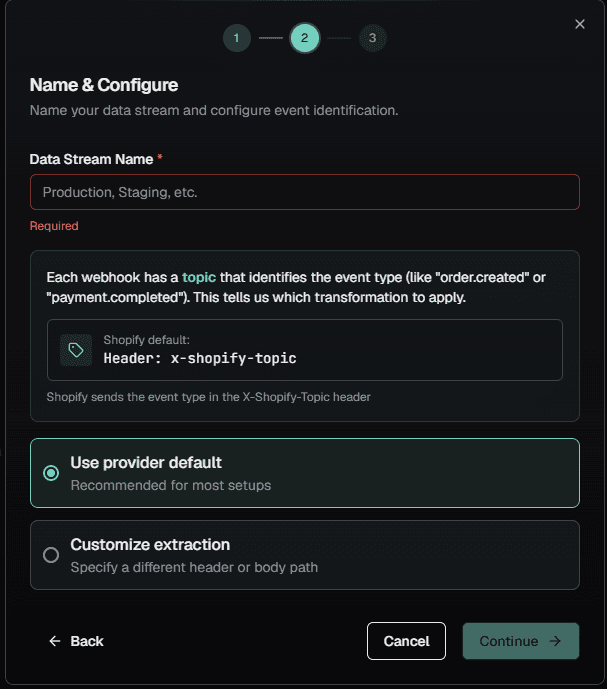 Figure 1: Step 2 of the setup wizard. Slashbin already knows Shopify sends the event type in the
 X-Shopify-Topic header, so "Use provider default" is all you need.
- Secure & Connect: The final screen hands you your Ingestion URL (keep it — you'll need it in Step 5) and a Shopify Inbound Secret box. In your Shopify Admin under Settings → Notifications → Webhooks, Shopify prints a line beneath the webhook list reading "All your webhooks will be signed with …". Paste that value into it, then click Finish Setup — the secret isn't saved until you do.
Result: Slashbin now auto-rejects any fake requests that don't satisfy Shopify's HMAC signature.
Step 2: Build the Golden Model (Visual Transformation)
Now, forget the 100+ fields Shopify sends. Let's define the 5 fields you actually care about.
Open the Transformation IDE. You will see the raw Shopify JSON on the left ("Source Data") and your clean schema on the right.
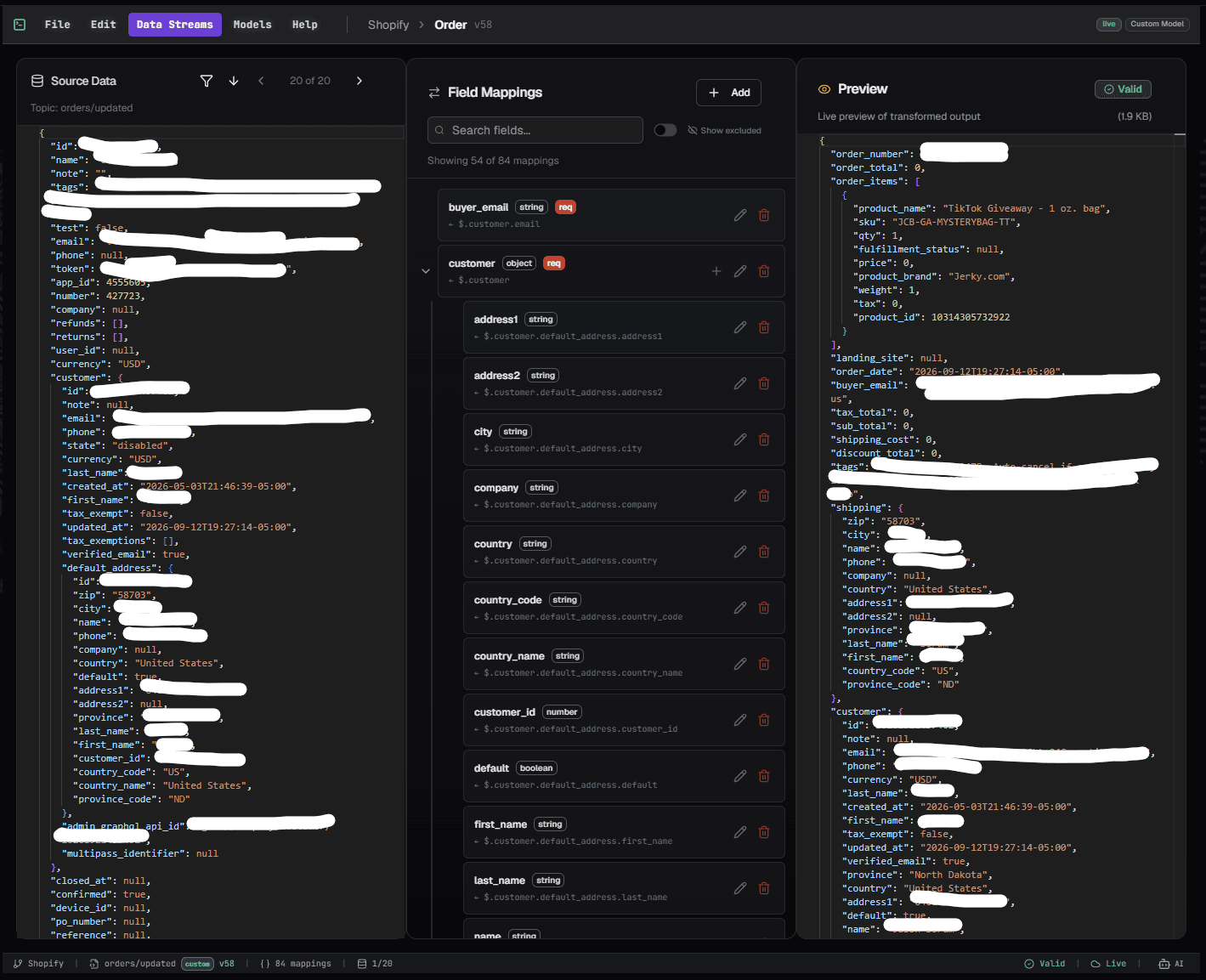 Figure 2: The Transformation IDE shows source data on the left and your target schema on the right.
When you create the model, set its Data Type to Transactional — an order is an entity whose state changes, which is exactly what that setting is for.
Building Your Field Mappings
Use the Field Mappings panel to define the clean JSON structure your API expects:
- + Add — Create a new field mapping. Enter the target field name (e.g.,
customer_email) and configure the JSONPath source. - Pencil icon — Edit an existing field mapping to change its source path or validation settings.
- Add All — Import all source fields as-is (useful for debugging or full payload pass-through).
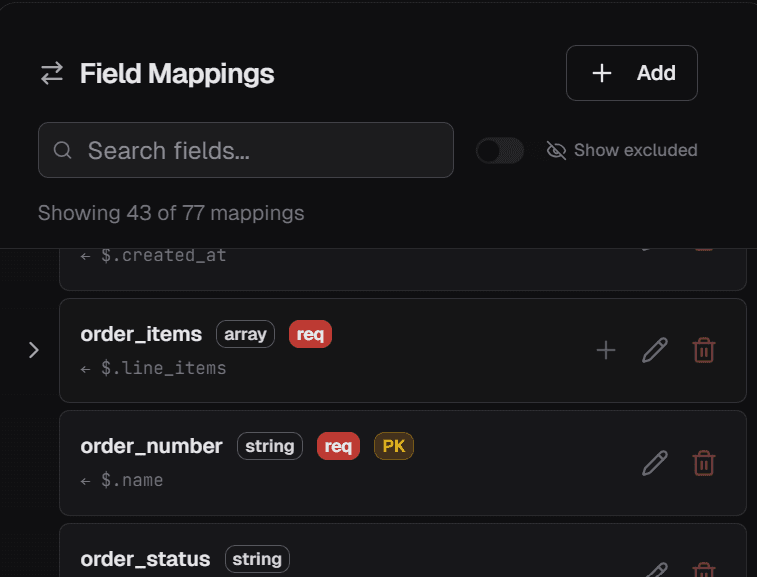 Figure 3: The Field Mappings panel. Click "+ Add" to create new fields, or use the pencil icon to edit existing ones.
Pro tip: Toggle Required ON for critical fields. If an order comes in without an email, Slashbin flags it as invalid automatically—no if (!email) throw error needed.
Create a Derived Field (The Logic)
Need to compute a value based on conditions? Use a Derived Mapping. In this example, we'll create a sales_channel field that routes orders to the correct domain based on their source tag.
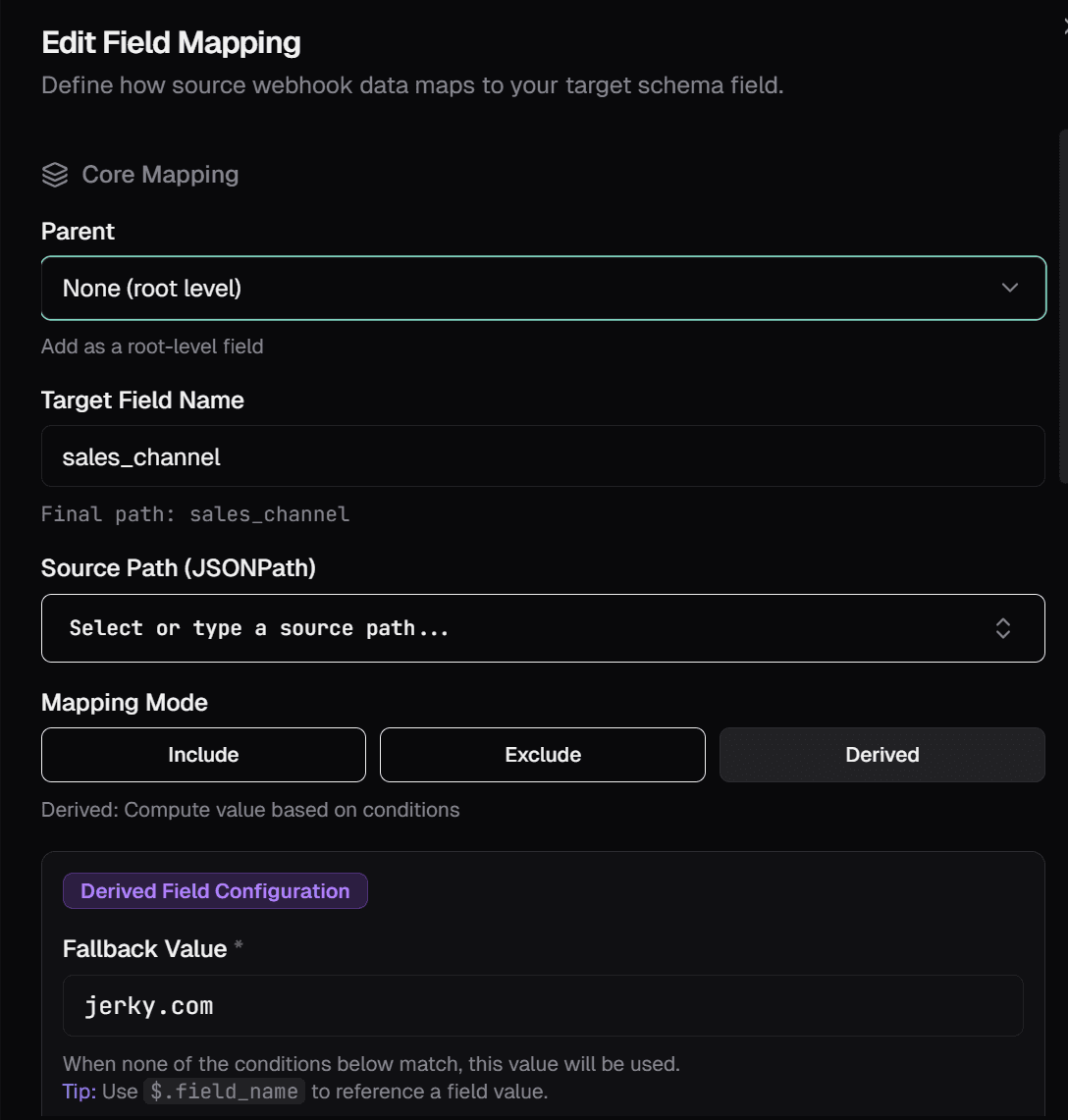
Select Derived mode and set a Fallback Value (e.g., jerky.com) for when no conditions match.
Figure 4: Click through the tabs to see how Derived fields work—no code required.
This creates a sales_channel field that automatically routes orders to the correct destination based on their source tag.
Step 3: Publish Your Model
Before webhooks can be transformed, you need to publish your model.
Click Publish in the top navigation bar to activate your model.
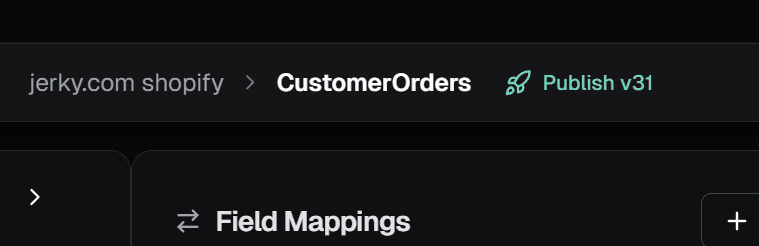 Figure 5: Click "Publish" to activate your model. The version number increments with each publish.
Safe by default: Unpublished models don't drop events. Incoming webhooks are securely captured in the Dead Letter Queue until your model is ready. Nothing is lost.
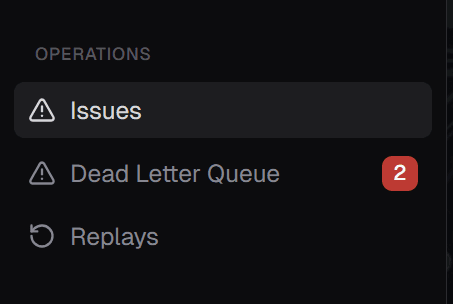 Figure 5b: The Dead Letter Queue captures events when no published model matches—your safety net during development.
Step 4: Define Your Endpoint
Now that your model is published, tell Slashbin where to send the transformed data.
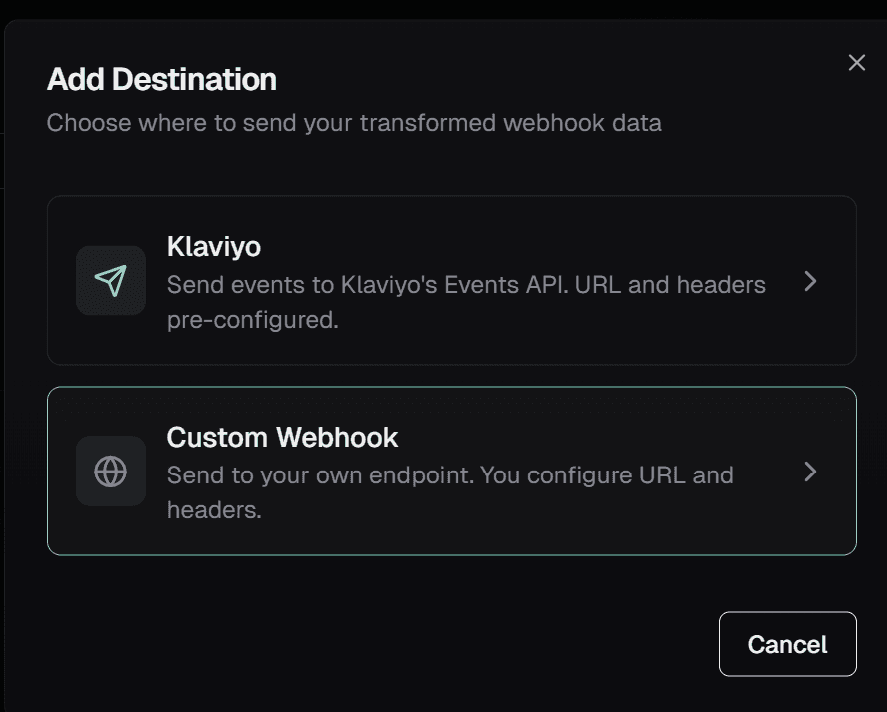
Go to the Outbound tab and click + Add Destination. Choose Custom Webhook to send to your own endpoint.
Figure 6: Click through the tabs to set up your destination. The Developer Guide provides production-ready code with HMAC signature verification for Express and Flask.
Step 5: Go Live
-
Copy the Ingestion URL from the dashboard.
-
Paste it into your Shopify Admin → Notifications → Webhooks.
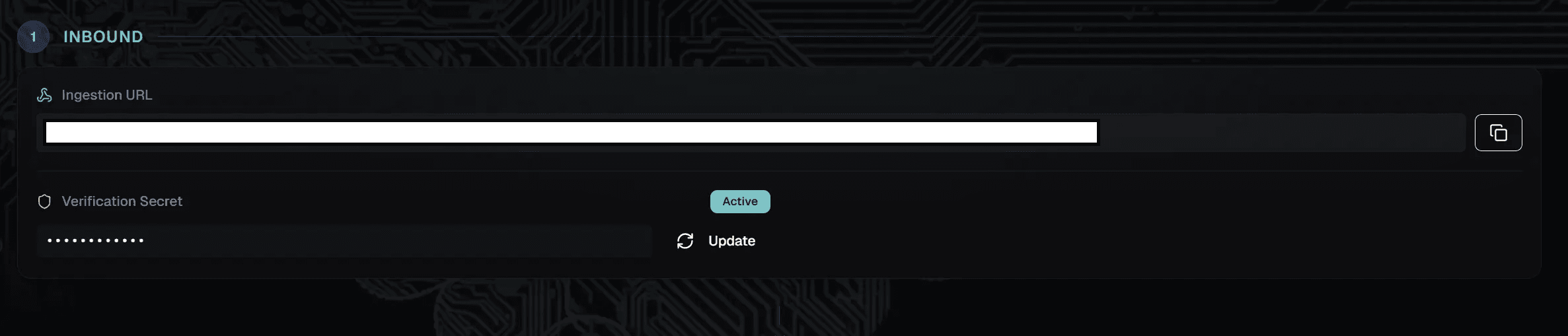 Figure 7: Copy your unique ingestion URL and paste it into Shopify's webhook settings.
Done. Your API now receives perfect, flat JSON every time. No parsing logic required.
Before & After
What Shopify Sends (500+ lines):
{
  "id": 6988309430586,
  "app_id": 580111,
  "buyer_accepts_marketing": true,
  "currency": "USD",
  "current_subtotal_price": "53.98",
  "current_total_price": "65.94",
  "financial_status": "paid",
  "fulfillment_status": null,
  "line_items": [
    {
      "name": "Brisket Beef Jerky Bundle - All 3 Flavors",
      "sku": "JCB-BRISK-SD-3PK",
      "price": "18.99",
      "quantity": 1,
      "vendor": "Jerky.com",
      "grams": 213,
      "product_id": 10062816903482,
      "tax_lines": [{ "rate": 0, "title": "Oregon State Tax" }]
    },
    {
      "name": "11 pc Valentine's Day Jerky Snack Combo",
      "sku": "JCB-GFT-VD-BUNDLE",
      "price": "34.99",
      "quantity": 1,
      "vendor": "Jerky.com",
      "grams": 278,
      "product_id": 10172745548090
    }
  ],
  "shipping_lines": [{ "code": "Economy - 7 to 10 Business Days", "price": "11.96" }],
  "...": "400+ more fields (billing, payment, discounts, etc.)"
}
What Your API Receives (Golden Model):
{
  "order_total": 65.94,
  "order_status": "unshipped",
  "sales_channel": "jerky.com",
  "sub_total": 53.98,
  "shipping_cost": 11.96,
  "tax_total": 0,
  "order_items": [
    {
      "product_name": "Brisket Beef Jerky Bundle - All 3 Flavors",
      "sku": "JCB-BRISK-SD-3PK",
      "qty": 1,
      "price": 18.99,
      "product_brand": "Jerky.com",
      "weight": 7.5
    },
    {
      "product_name": "11 pc Valentine's Day Jerky Snack Combo",
      "sku": "JCB-GFT-VD-BUNDLE",
      "qty": 1,
      "price": 34.99,
      "product_brand": "Jerky.com",
      "weight": 9.8
    }
  ]
}
Why This Works
- Golden Model Positioning: You aren't just "transforming" data—you're enforcing a standard. That's a senior engineer mindset.
- Visual Proof: The UI elements (JSONPath, Required Toggles) prove it's easier than writing regex.
- Safety: The "Required" toggle provides automatic validation without defensive code.
Next Steps
- Learn about Fan-Out to send webhooks to multiple destinations
- Set up Smart Retries for guaranteed delivery
- Explore Replay to debug webhook processing
- Browse every supported source and destination on Integrations